 Leo for VS Code
If you find LeoInteg useful, please consider sponsoring it. Also please write a review or star it on GitHub
Literate Programming with Directed Acyclic Graphs (dag)
Break your code down into sections structured as an outline, to derive or parse back your files
Leo is a fundamentally different way of using and organizing data, programs and scripts.
Introduction Video 🎥
See Leo, the Literate Editor with Outline, at leoeditor.com or on github, and VS Code at code.visualstudio.com.
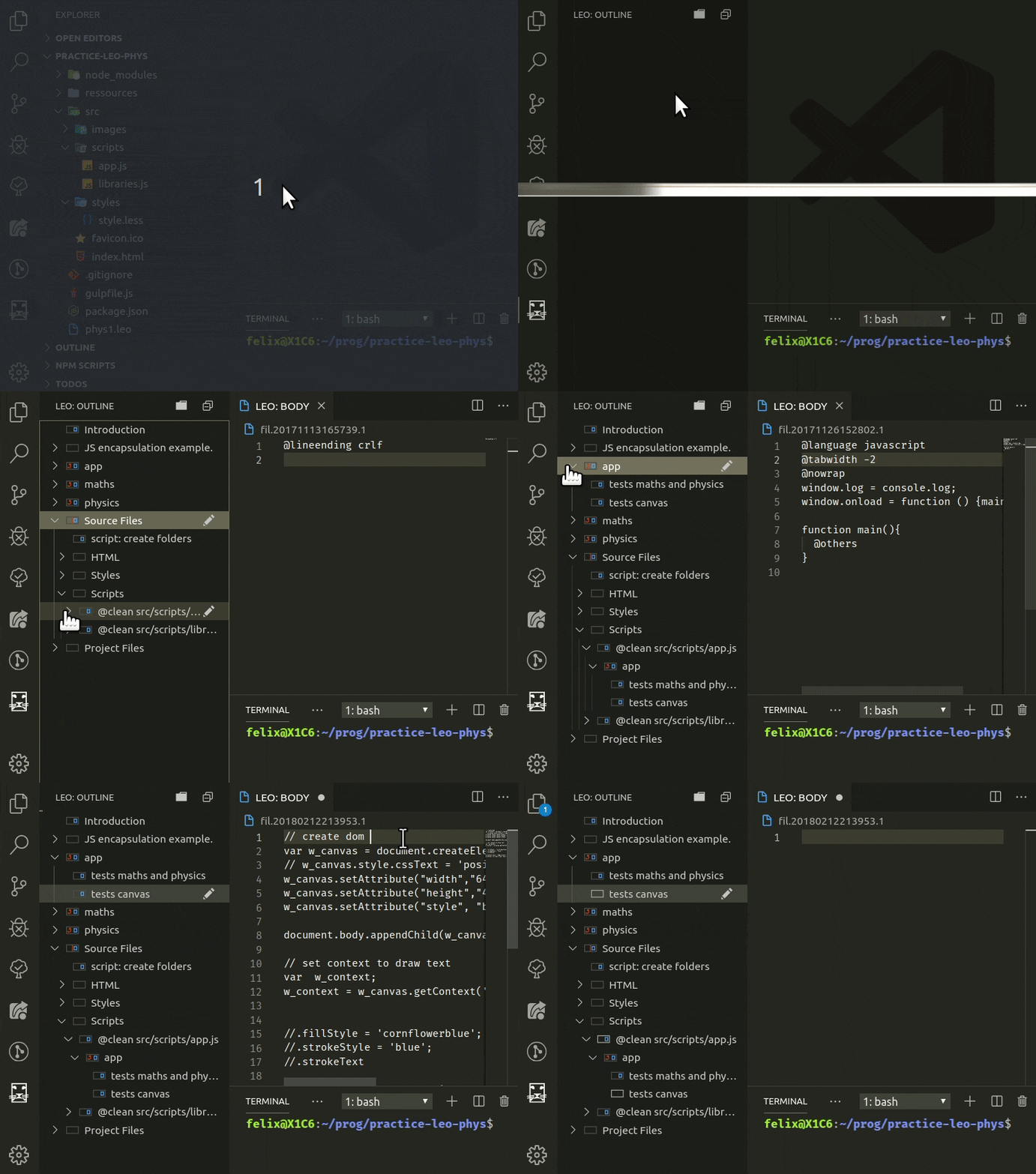
Requirements
Features
- UI controls such as a Leo Outline in the explorer view, or as a standalone sidebar, body pane, opened documents selector, find panel, along with a Log Window and Terminal output channels.
- Keybindings that match those of the Leo editor, including arrow keys behavior for outline keyboard navigation. (Can be turned off with the 'Leo Tree Browsing' option setting)
- A welcome screen that also gives access to this extension's settings.
- Derived files change detection. See External Files below for more details
- '@button' panel for creating your own commands with @buttons
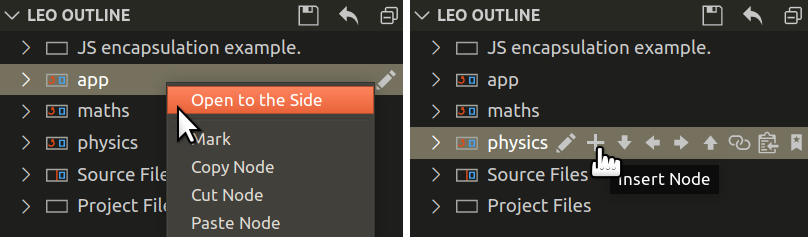
- Access Leo commands with context menus, outline-node hover icons, keyboard shortcuts, the command palette
Ctrl+Shift+Por Leo's minibufferAlt+X:- Open body panes to the side in any 'column'
- Outline editing commands
- Find operations
- Clipboard operations
- Undo/Redo commands
Keybindings
| Outline Commands | |||
|---|---|---|---|
Ctrl + I |
or | Shift + Insert |
Insert Node |
Ctrl + H |
Edit Headline | ||
Ctrl + Shift + C |
Copy Node | ||
Ctrl + Shift + X |
Cut Node | ||
Ctrl + Shift + V |
Paste Node | ||
Ctrl + Shift + Backspace |
or | Delete |
Delete Node |
Ctrl + Backquote |
Clone Node | ||
Ctrl + { |
and | Ctrl + } |
Promote / Demote |
| Moving Outline Nodes | |||
|---|---|---|---|
Ctrl + U |
or | Shift [+ Alt] + Up |
Move Outline Up |
Ctrl + D |
or | Shift [+ Alt] + Down |
Move Outline Down |
Ctrl + L |
or | Shift [+ Alt] + Left |
Move Outline Left |
Ctrl + R |
or | Shift [+ Alt] + Right |
Move Outline Right |
Move Outline commands need the 'Alt' key modifier only when focus is on body pane.
| Common Operations | |||
|---|---|---|---|
Alt + - |
Contract All | ||
Ctrl + M |
Mark / Unmark | ||
Ctrl + B |
Execute Script | ||
Ctrl + T |
Toggle Outline/Body | ||
Tab |
or | Alt + D |
Focus on Body |
Alt + T |
Focus on Outline | ||
Ctrl + Shift + D |
Extract | ||
Ctrl + Shift + N |
Extract Names | ||
Alt + A |
Sort Siblings | ||
Ctrl + F |
Start Search | ||
F3 |
Find Next | ||
F2 |
Find Previous |
| Tree Navigation | |||
|---|---|---|---|
Alt + Home |
or | Home * |
Go To First Visible Node |
Alt + End |
Go To Last Sibling | ||
End * |
Go To Last Visible Node | ||
Alt + N |
Go To Next Clone | ||
Alt + Arrow Keys |
or | Arrow Keys * |
Browse Tree |
Ctrl + T |
Switch Tree/Body Focus | ||
Tab |
Focus from Tree to Body | ||
Alt + G |
Go To Global Line |
* With the 'Leo Tree Browsing' setting enabled by default, all arrows and numeric keypad keys change the outline's selection directly
Derive External Files
Use the Save Leo File command to derive external files.
Leo will detect derived file changes and will ask to either refresh from disk or ignore the changes.
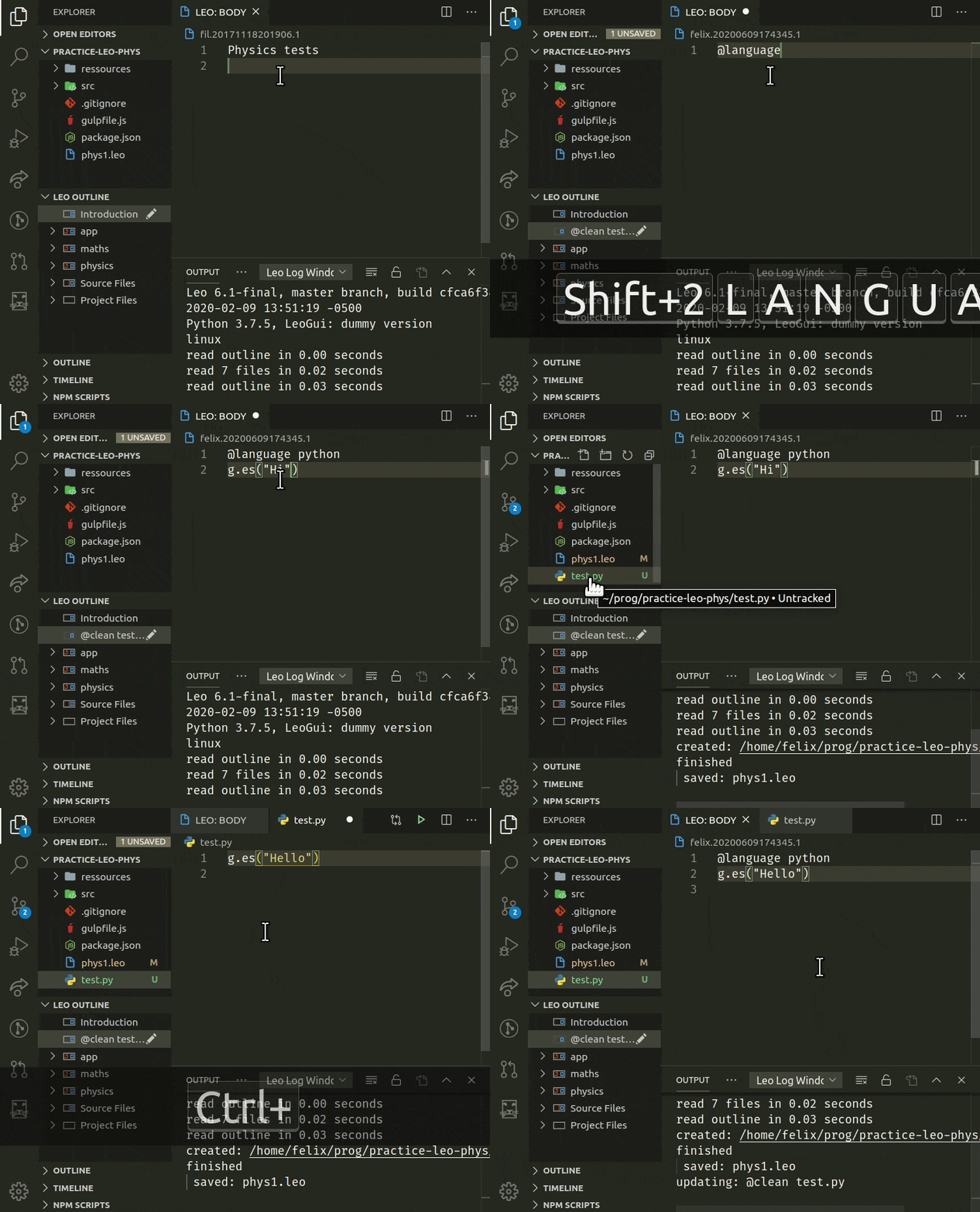
Automate Synchronization
The change detection process can be automated to always refresh, or ignore file changes: A notification will inform you of the action taken instead.
Status Bar Indicator
A customizable keyboard status bar indicator is shown when this extension is activated. It will turn orange (or your choice of text and color), when leo's keyboard shortcuts are active. This occurs when an outline node or a body pane has focus:

Extension Settings
Open the command palette Ctrl+Shift+P and start typing leo settings to access LeoInteg's welcome/settings screen
(Changes are auto-saved to the user's profile after 0.5 seconds)
- Control the visibility of the outline pane in the explorer view.
- Decide how and when to refresh and synchronize content when derived (external) file are modified.
- Show additional icons on outline nodes (Move, delete, mark, copy, paste...)
- Choose to either focus on the body pane, or keep focus in the outline when a node is selected.
- Hide or show the "Open on the side" command in the context menu to open a node beside the active editor
- Set preferences for setting the address and port, and for automatically starting, and/or connecting to a Leo server.
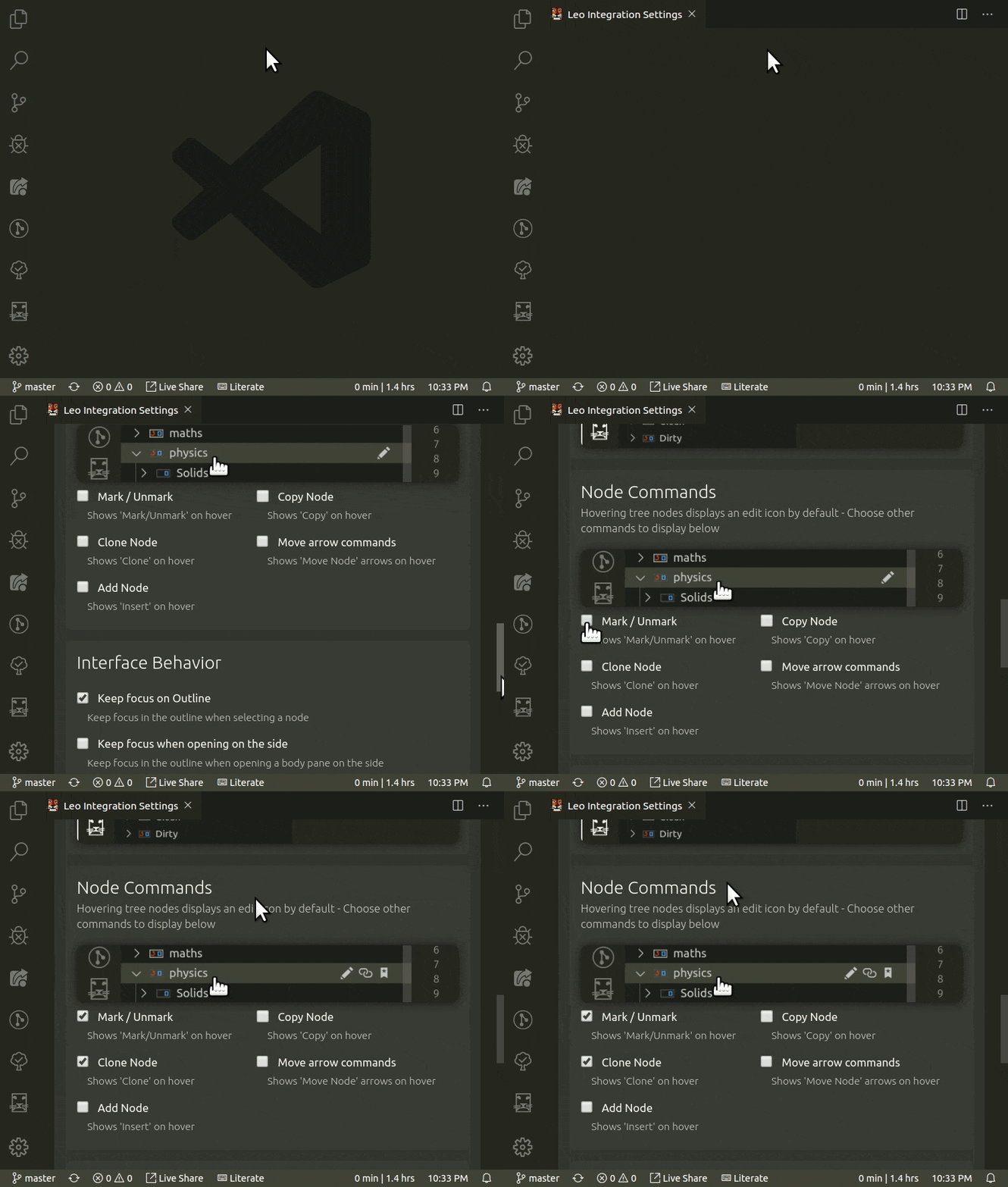
Server Settings
Although the Leo integration has one instance of the leoserver script per vscode 'project' window by default, the server settings also has features that allows you to use the same instance of Leo in multiple client (vscode) windows simultaneously, with real-time updates and interaction.
(See Multiple concurrent connections)
Auto Start
When auto-start is set, a vscode window will start a new instance of Leo server for itself on the next available network port. If the connection limit is set to anything above the default of one (1), then the auto-start logic will consider a port being in use as being already started and will not start another one. (Letting you connect, or auto-connect to it from any additional opened vscode window.)
The server, located in your Leo-Editor installation folder, also has other options unrelated to LeoInteg that allows you to create a stand-alone internet server for other uses such as multi-user interaction over a network/internet, and more.
Run the server directly with the '--help' argument like so for more details:
...leo-editor/leo/core/leoserver.py --help
For more information about the Leo server see Using leoserver.py from Leo's official documentation.
Issues
Main issues are listed below. See the repository's Issues Page to submit issues.
Linux Keybindings
If you're experiencing trouble with the keyboard shortcuts for the 'Clone Node' or the 'Promote' and 'Demote' commands, set "keyboard.dispatch": "keyCode" in your vscode settings and restart vscode. See Troubleshoot Linux Keybindings for more information.
Keybindings Conflicts Resolution
If you have a keybinding conflict that you would like to be resolved by Leo when the focus is on the body pane, add && resourceScheme != 'leo' to the keybinding's "when" condition. (Use Ctrl+K Ctrl+S in vscode to open the Keyboards Shortcuts panel)
Move Outline Keyboard Commands
For some users, the Alt+[Arrow Keys], Ctrl+D and Ctrl+T keybinding are already assigned.
To help with this conflict, tree-browsing, outline-move keyboard commands, and switch focus command will only trigger with the additional condition of having no text selection in the editor.
So select at least one character to use the previously assigned original keyboard commands while focus is in the body pane.
Refer to the issue tracker page to learn more about the known issues, or to contribute with additional information if you encounter some yourself.
How It Works
Leo integration into VS Code is done by starting a python server script and connecting to it via a websocket to exchange JSON data. The server script leverages leoBridge and re-uses code from the leoflexx.py plugin.
The outline pane is made by implementing a TreeDataProvider for vscode's TreeView API, while the body-pane's virtual document is made by implementing a filesystem provider and using the node's gnx as identifier.
Acknowledgments
Thanks to
🤍 To sponsor, donate or contribute see my user page 🦁 Enjoy!
from Hacker News https://ift.tt/3gEpYWf

No comments:
Post a Comment
Note: Only a member of this blog may post a comment.