FILE IMPORT TIPS
Bad design files will throw errors and create models that explode or cannot be solved, here are some tips for importing FOLD or SVG files that work.
Importing FOLD:
The FOLD file format is specified in these docs. This tool imports FOLD v1.0 files with all of the following fields populated:
- vertices_coords
- edges_vertices
- edges_assignment
- faces_vertices
You may specify the target fold angle of each crease using the edges_foldAngle field. Note that fold angle is a number in degrees lying in the range [−180, 180]. The fold angle is positive for valley folds, negative for mountain folds, and zero for flat, unassigned, and border folds. Accordingly, the sign of edges_foldAngle should match edges_assignment if both are specified.
If you are unsure whether your FOLD file is valid, you can inspect it using the
FOLD Viewer. If you are having trouble, please refer to the
FOLD spec.
Importing SVG:- The SVG importer supports path, line, rect, polygon, and polyline objects with the appropriate stroke color:
- Mountain folds have red stroke - rgb(255, 0, 0), hex #ff0000
- Valley folds have blue stroke - rgb(0, 0, 255), hex #0000ff
- Boundary edges have black stroke - rgb(0, 0, 0), hex #000000 - use this edge type for both the outline of the pattern, and any internal holes.
- The final fold angle of a mountain or valley fold is set by its opacity. For example, 1.0 = 180° (fully folded), 0.5 = 90°, 0 = 0° (flat). Any fold angle between 0° and 180° may be used. The following patterns contain creases with varying final fold angles:
- Before the model can enter the simulator, this tool will automatically triangulate regions in the pattern that form polygons with more than three sides. To control the triangulations, draw lines in yellow - rgb(255, 255, 0), hex #ffff00. In general, patterns are more stable when their triangulation is symmetric and minimizes long, skinny triangles. You can see how the app automatically triangulated your pattern by enabling "Facet Crease" visibility in the Advanced Options > Edges Visibility menu on the left side of the screen. It may not be necessary to add triangulation lines on your pattern.
- Facet creases (yellow triangulation lines) are creases that try to remain flat (0° fold angle) as the pattern folds, but some compliance in the constraints of the simulation will allow them to bend slightly. Drawing in facet creases allows you to control the way the model bends in between mountain/valley folds. This is especially relevant in patterns with curved creases.
- Cuts have green stroke - rgb(0, 255, 0), hex #00ff00 - use this edge type to form thin slits in the pattern.
- Undriven creases have magenta stroke - rgb(255, 0, 255), hex #ff00ff - creases of this type will swing freely. Use this crease type when you're not sure what angle some of the creases in your pattern should fold to.
- Line style and stroke width do not matter.
- Remove clipping masks from your file before importing.
- This tool should be able to automatically clean files of slightly misaligned vertices, stray vertices, duplicate lines, and extra vertices falling in the middle of an edge, but it is recommended to remove these errors yourself in order to avoid problems.
- If your simulation is not working, check that the imported pattern looks correct by clicking on the Pattern view in the top nav bar. You can also download a copy of the imported pattern ( File > Save Pattern as SVG ) and view it in a vector editing program of your choice.
I use Illustrator to create SVGs (though any vector editing program should be fine). Here are some tips I've found for making svgs to import into this tool.
- If you are starting with a pre-made vector file, first release all clipping masks (Select all + Object > Clipping Mask > Release).
- Create geometry using the Line Segment, Rectangle, and Polygon tools.
- Illustrator can help you select all lines of a particular type so that you can edit their color or opacity together. Click the line, then go to Select > Same > Appearance to select all similar lines in the pattern.
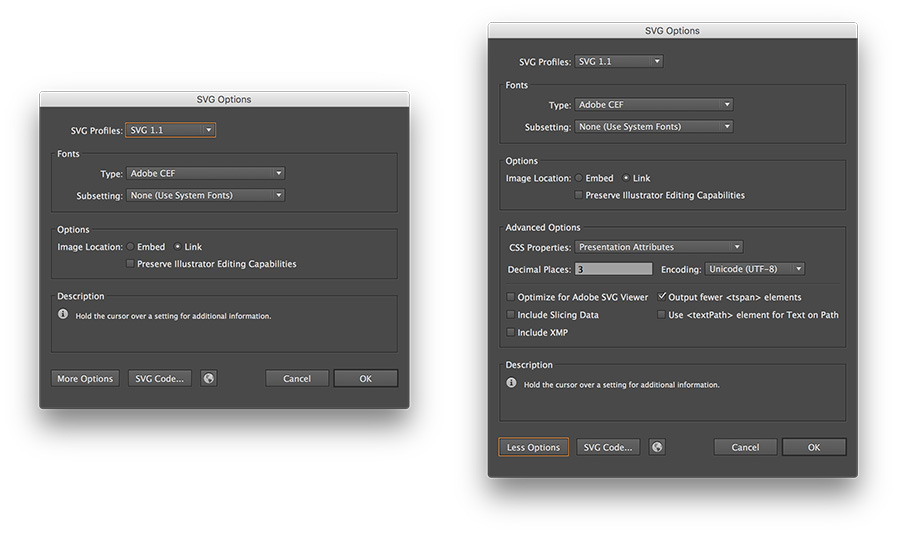
- Be sure that CSS Properties is set to Presentation Attributes in the Advanced options.
- Finally hit Save As and select .svg extension. I'm using the default SVG 1.1 settings, but version 1.0 will work as well.
from Hacker News https://ift.tt/37G0beu

No comments:
Post a Comment
Note: Only a member of this blog may post a comment.